Private Setup for Restricted Work Computers
Increase Agent Productivity on Day ONE
This page is for agents who need a secure way to use ONE when their company does not allow software to be installed on their work computer.
The original software works perfectly on any computer where downloads and installations are allowed. However, some companies restrict what can be installed — so a workaround may be necessary.
Yes, this method involves a few extra steps and possibly some additional purchases. But in the end, the time and effort ONE will save you makes it absolutely worth learning how to set it up correctly.
Thank you for your understanding — we built this for you. Enjoy!
Please Read Before You Begin
Before ordering or setting up ONE, you must understand the following:
Thousands of agents use ONE daily. Once you're past the learning curve, it becomes indispensable.
👉 Take the time. Trust the process. It's worth it.
What's it Look Like? What Are We Doing?
We are proceeding with the installation of ONE on your personal computer. For optimal usability, we recommend configuring an extended monitor and external keyboard. Position the extended monitor adjacent to your work monitor for ease of workflow. Additionally, you may find it beneficial to use both mice — one in each hand — to enhance efficiency.


The G10 Mixer is being utilised to route recordings from the ONE software on your personal computer, as well as audio from your headset connected to the mixer, to your work computer. The mixer effectively functions as a replacement for the USB headset you would typically connect directly to your device.
You can continue to use both your work computer and ONE simultaneously. To do this, just choose "G10 Mixer" as your input (microphone) and output (speaker) settings on your work computer, no matter which program or phone you are using.
Select "G10 Mixer" as Input & Output
Works with Zoom, Teams, Dialpad, Vici, and any other softphone
How ONE Works
First, Get ONE Ordered!
Second, Order the Following Items
There is a reason these items are chosen! Do NOT try other things — these work!
YES — Order BOTH Headsets!!!!
We do NOT make anything on these! These are the exact items that work with this setup.
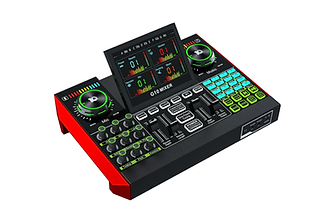
Routes audio between computers

You will need TWO keyboards & mice
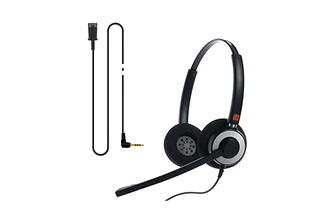
Primary headset for personal PC
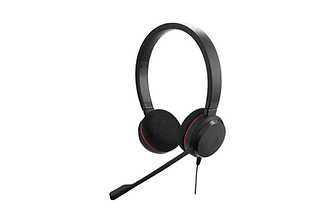
Second headset — both are required
This keyboard is amazing! You will need two keyboards and mice!
Getting ONE Set Up Correctly
(Videos Must Be Watched in Order)
🎥 Video 1: Download & Install ONE
It is recommended that you play this video AS you set up ONE! Follow each step, press pause — complete the task — then press play. Repeat as needed.
🎥 Video 2: Setting Up Your Mixer
After your mixer and headset are delivered, you can install them and try them out on Zoom, Teams, or any other softphone application you use.
🎥 Video 3: Setting up The Script
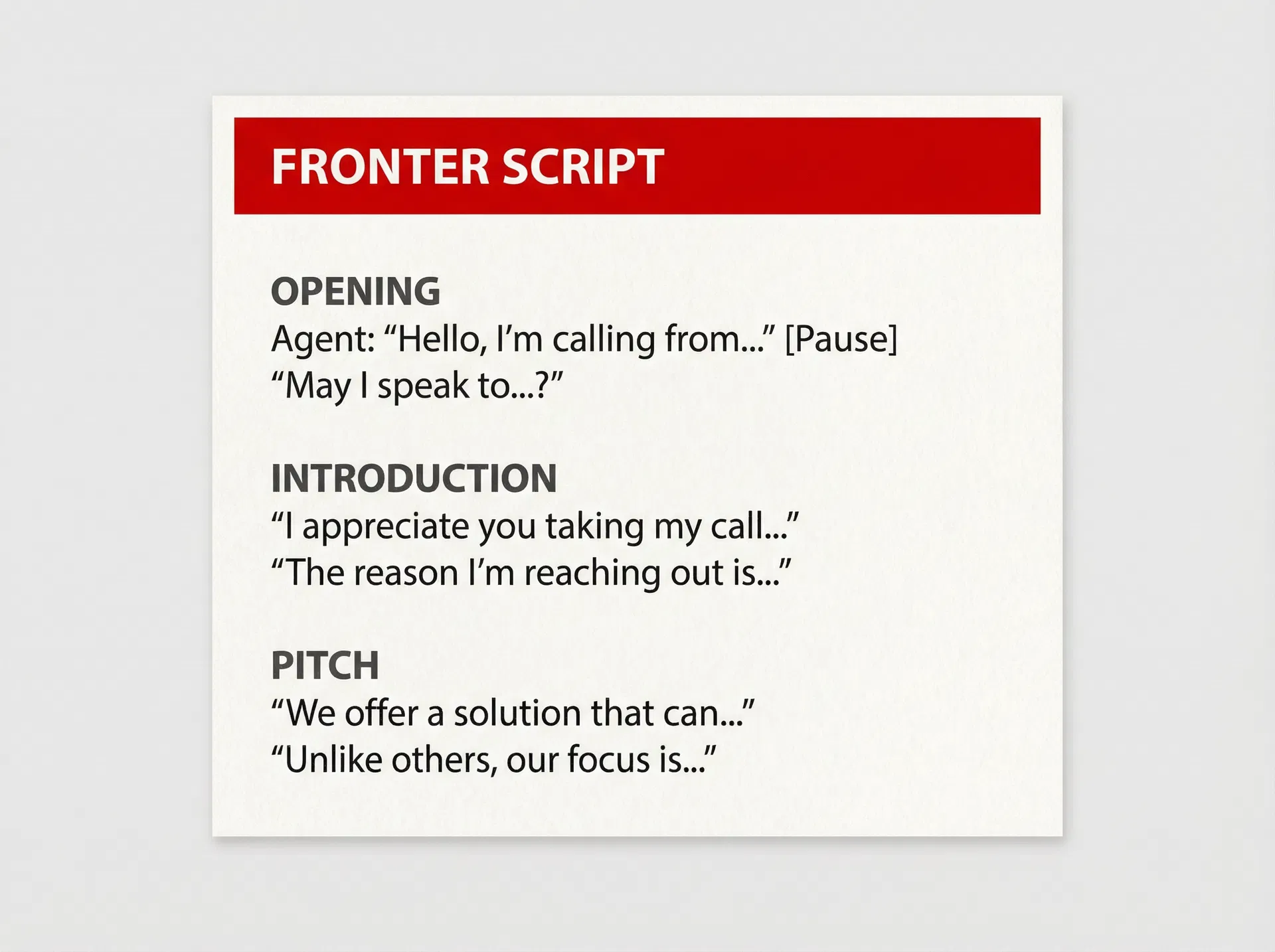
Learn how to record your script sections and assign them to keyboard keys in the ONE software.
- Sample Master Script
- Mixer Set Up
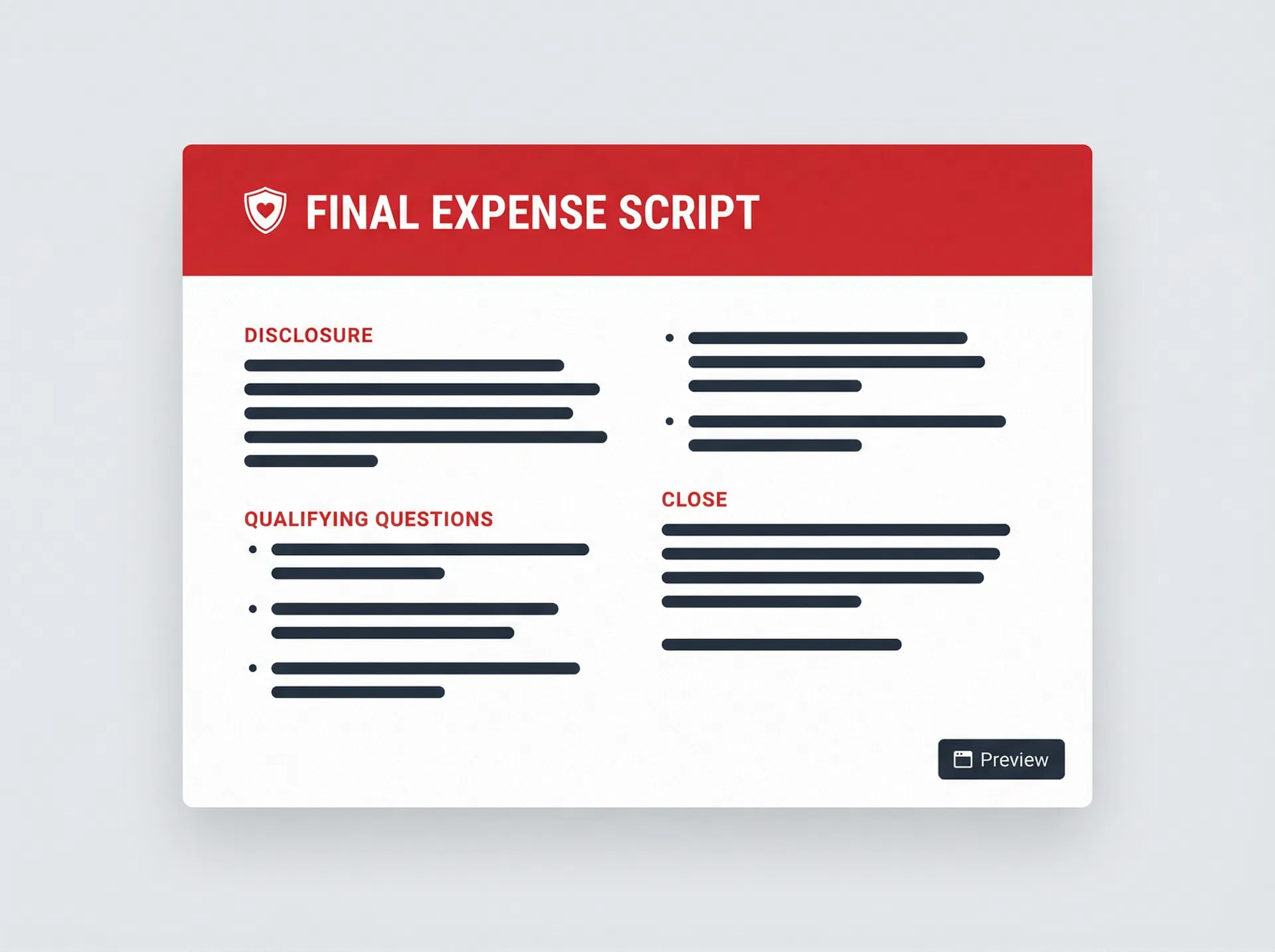
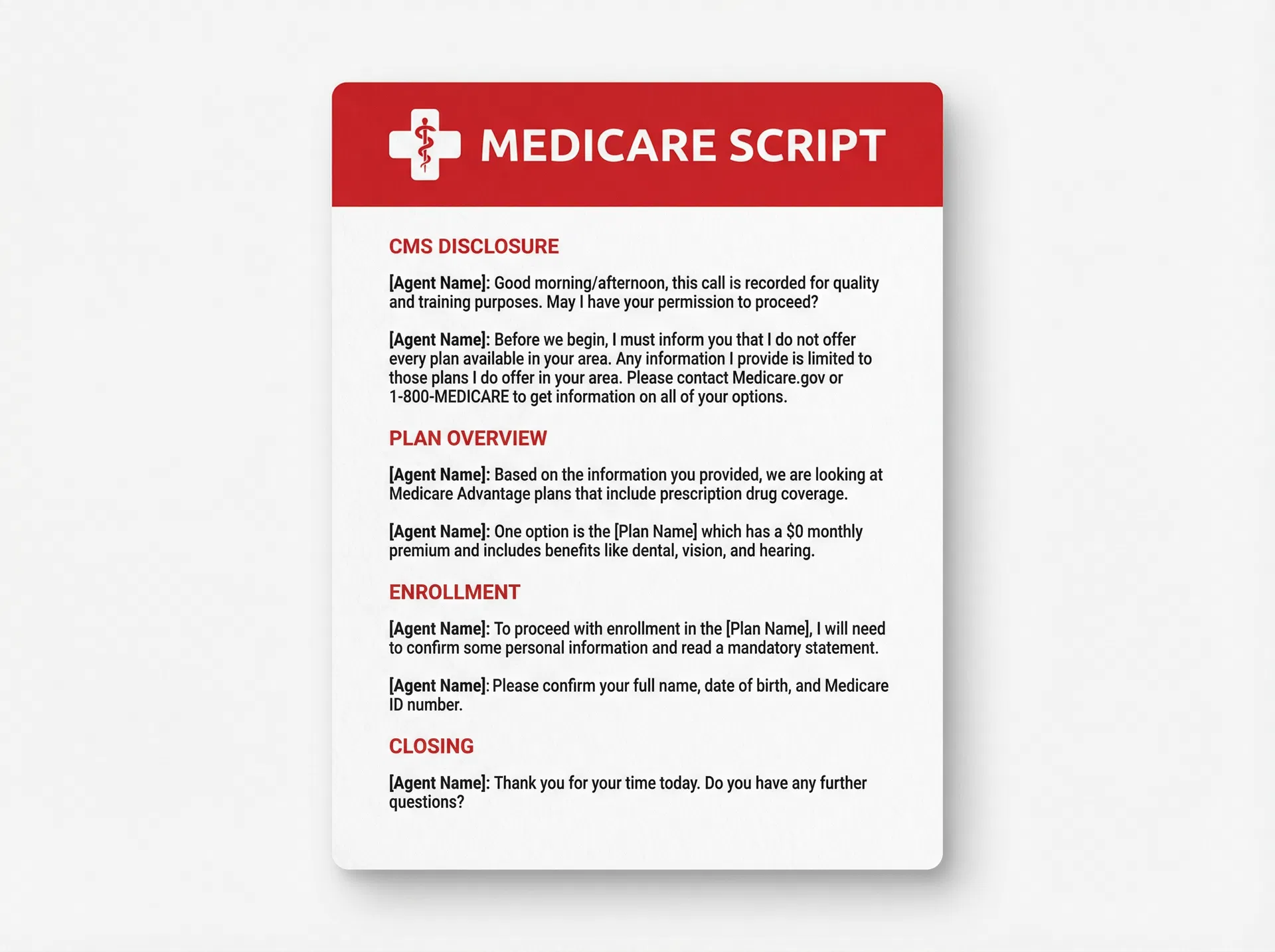
Sample Scripts — Download & Use
Helpful Recording Tips
Record your disclosure, then review it by playing it back. If the recording does not meet quality standards, re-record as necessary.
Produce 3–5 disclosure recordings, then conduct a TEST call to verify that your recording microphone closely matches the sound of your speaking microphone. Adjust the microphone placement relative to your mouth as needed.
Fine-tune the top three mixer levels for your live voice to ensure consistency with your recorded samples. Continue testing and adjusting until you achieve satisfactory results. Once satisfied, proceed to record all disclosures, ensuring you listen to each one upon completion.
Testing Your Setup
Once you have completed the setup process, perform a test call and adjust your volume settings as necessary.
When conducting either a live or test call, ensure that you select "G10 Mixer" as both the input and output for your audio settings within the relevant application.
If the device does not appear in the list, disconnect the USB cable from the headset slot and reconnect it. Should the issue persist, restart the program with the USB connected. This should resolve any remaining issues.
We use cookies to improve your experience, analyze site traffic, and support our marketing. By clicking "Accept", you consent to our use of cookies. Privacy Policy